
Overview
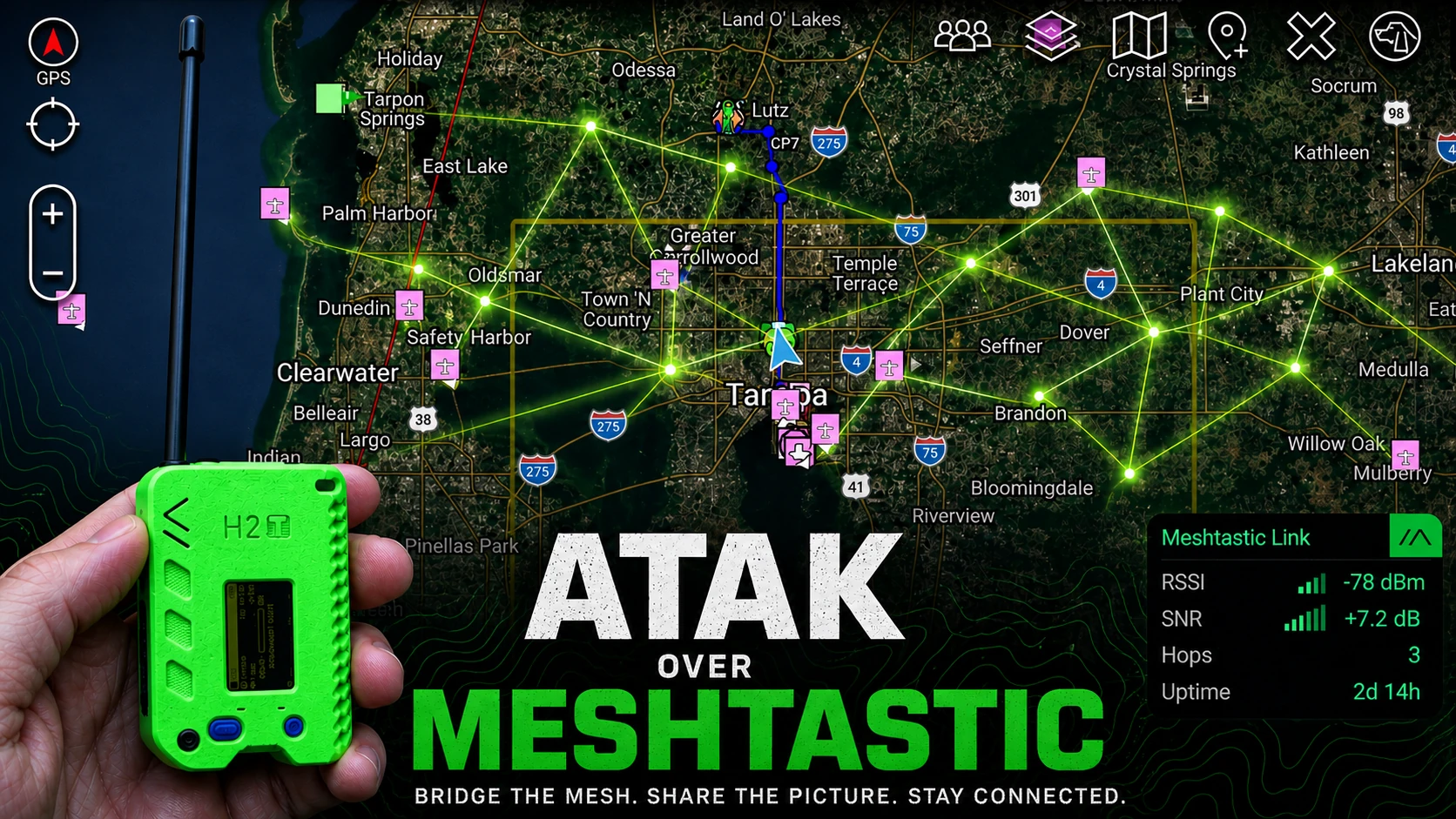
This guide covers configuring ATAK (Android Team Awareness Kit) integration with Meshtastic mesh networks using the Meshtastic Android app's built-in Local TAK Server feature, which was introduced in v2.8. Meshtastic runs a TAK-compliant server right inside the app, and ATAK connects to it like any other TAK server. You'll learn optimal Meshtastic settings for ShortTurbo, how to stand up the Local TAK Server, and mesh architecture strategies for scaling your network.
Verified Aug 2026 with ATAK 5.8.0, Meshtastic Android app 2.8.1, and Meshtastic firmware 2.7.26 (beta/stable) and 2.8.0 (alpha/unstable). See the "Wire Format" section below for firmware functionality differences.
Meshtastic Configuration
Most default settings are fine, but here's what needs tuning for optimal ATAK performance over ShortTurbo. All settings are configured through the Meshtastic Android app.
LoRa Settings
Settings → Radio configuration → LoRa
| Setting | Value | Why |
|---|---|---|
| Preset | Short Range - Turbo | LongFast lacks bandwidth for ATAK. ShortTurbo provides the throughput needed for PLI, chat, and data packages. You can also use MediumFast, but you will need to switch to ShortTurbo to send data packages. |
| Ignore MQTT | On | We don't care about internet traffic on a private RF-only mesh. Reduces noise. |
| Frequency Slot | 50 | "0" should theoretically auto-negotiate, but explicit is better. If your are using a LoRa Preset other than ShortTurbo, look up your Frequency Slot here. |
Device will reboot when you save these changes.
Channel Settings
Settings → Radio configuration → Channels
- Delete the default "LongFast" or "ShortFast" channel (channel 0)
- Replace with a private primary channel
- Set a PSK for AES 256-bit encryption
- Enable precise location
- Hit "Send" after changes (device will NOT reboot for channel changes)
Device Settings
Settings → Device configuration → Device
| Setting | Value | Use Case |
|---|---|---|
| Device Role | TAK | For devices paired with an ATAK EUD via Bluetooth |
| Device Role | TAK_TRACKER | For standalone devices with no ATAK EUD attached |
| Rebroadcast Mode | LOCAL_ONLY | Only care about traffic on our private channel(s), not public mesh |
Timezone (optional): "Use phone time zone" works fine. For standalone devices, set a POSIX timezone string.
For example, US Eastern/New York would be:EST5EDT,M3.2.0/2:00:00,M11.1.0/2:00:00
-or-EST5EDT,M3.2.0/2,M11.1.0/2
if you shorten each instance of "2:00:00" to "2".
Device will reboot when you save these changes.
Position Settings
Settings → Device configuration → Position
| Setting | Value | Why |
|---|---|---|
| Smart Position | On | Only broadcasts position when it changes/when you're moving. Reduces mesh chatter, also saves battery. |
Note: You can turn Smart Position off for stationary testing to see more frequent updates, but leave it on for operational use.
Device will reboot when you save these changes.
Display Settings
Settings → Device configuration → Display
| Setting | Options |
|---|---|
| Display Units | Switch between metric and imperial as needed |
Device will reboot when you save these changes.
Enable the Local TAK Server
This is the whole workflow. No plugin to install, no plugin settings to configure, the server lives inside the Meshtastic app, and ATAK/iTAK connects to it exactly like it would connect to any other TAK server.
- In the Meshtastic app: Settings → TAK Server → Enable
- Tap to download/export the TAK data package
- Open ATAK (or iTAK) → Settings → Network Preferences → TAK Servers
- Tap the 3 dots → Add a Server → Import Data Package and select the file you just exported
- Your node should appear on the ATAK map within a few seconds
How It Works
The Meshtastic app runs a small TAK-compliant server that binds to 127.0.0.1:8089 on the same device, it is not reachable from other devices on your network, so ATAK/iTAK must be installed on the same phone or tablet as the Meshtastic app. It uses TLS with mutual certificate authentication (mTLS); the data package you import contains the client certificate ATAK needs.
This is the same architecture the Meshtastic iOS app already uses for iTAK/TAK Aware, Android just caught up.
Wire Format (V1 / V2), What You're Actually Getting Today
| Format | Firmware | Supports |
|---|---|---|
| V1 | 2.7.x (current stable/beta) | Position sharing (PLI) and chat (GeoChat) only |
| V2 | 2.8.0+ (current unstable/alpha) | Adds shapes, markers, routes, aircraft, CASEVAC, emergency, and task CoT types |
The app picks whichever format your radio's firmware supports automatically, there's nothing to configure. As of this writing, Meshtastic firmware 2.8.0 is currently unstable/alpha (2.7.26 is the latest stable/beta release), so everyone is currently on V1: solid PLI and GeoChat, but shapes/markers/routes won't bridge until you flash 2.8.0 firmware. This upgrades automatically, with no action on your part, once you flash 2.8.0+ firmware.
Mesh Architecture & Scaling
Once your nodes can see each other, optimize your mesh architecture for performance and scalability.
Favorites System
Add nodes to each other's "Favorites" via the node list in the Meshtastic Android app. Favorited nodes get priority treatment in mesh routing.
Strategy: Create a core group of reliable, well-positioned nodes that favor each other. This creates a backbone mesh that newer nodes can connect to.
CLIENT_BASE Role for Fixed Nodes
If you have a well-positioned, stationary high node (rooftop, tower, hilltop), set its Role to CLIENT_BASE.
Behavior: Acts as a ROUTER for nodes it has favorited, acts as a CLIENT for any others. This is a good baseline strategy for scaling your mesh. Your nodes get priority routing, but the mesh still plays nice with others.
Best practices:
- Use CLIENT_BASE for solar-powered rooftop nodes
- Use CLIENT_BASE for any node that has excellent coverage and reliable power
- Favor your mobile nodes from these fixed nodes
- This creates mesh "infrastructure" separate from portable/mobile nodes
Scaling Your Network
As you add more nodes, think in layers:
- Core infrastructure: Fixed CLIENT_BASE nodes with solar power, optimal positioning
- Mobile operators: TAK role devices paired with ATAK EUDs
- Trackers: TAK_TRACKER devices for personnel or asset tracking
- Edge nodes: Extending coverage at the periphery
Each layer serves a purpose. Infrastructure provides reliability. Mobile operators provide flexibility. Trackers provide visibility. Edge nodes extend reach.
Troubleshooting
- TAK Server won't enable / traffic isn't bridging: Your primary channel needs a non-default name and a non-default 256-bit encryption key. Use the "Fix Channel" button on the TAK Server screen, or set it manually per the Channel Settings above.
- Node doesn't appear on the ATAK map: Re-export and re-import the TAK data package. Confirm the TAK module is enabled and your device role is TAK or TAK_TRACKER.
- ATAK/iTAK can't connect at all: The Local TAK Server only accepts connections from the same device (it binds to localhost only), ATAK and the Meshtastic app must be on the same phone or tablet.
- Messages not getting through: Check hop limit. Start at 3, adjust if needed. Verify encryption is configured the same on all nodes.
- Poor performance: Confirm you're using ShortTurbo, not LongFast. LongFast lacks bandwidth for ATAK traffic.
- Shapes/markers/routes not showing up: That requires firmware 2.8.0+ (V2 wire format), which hasn't been released yet as of this writing. You'll still get position and chat on current 2.7.x firmware.
Performance Notes
ShortTurbo provides significantly better throughput than default LongFast, but at the cost of range. Typical ranges:
- Urban environment: 0.5 miles depending on obstacles
- Suburban environment: 1 mile with line of sight
- Elevated node in rural/open terrain: 3 miles with good line of sight
- High elevation nodes: Can easily extend to 10+ miles in good conditions
The trade-off is worth it for ATAK integration. The extra bandwidth means faster, more reliable PLI and GeoChat updates now, and enough headroom for shapes, markers, and routes once you're on V2-capable firmware.
Additional Resources
For more information on ATAK and Meshtastic:
- Official Meshtastic Android TAK Integration Docs
- Official Meshtastic Documentation
- Legacy ATAK Plugin Guide - the old plugin-based workflow, for anyone who still needs it
- Chaos Koalas FAQ - Common questions about mesh networking
- If you are experiencing issues, check our Gotchas & FAQ
- Contact Us - Get help with your setup
Next Steps
You now have a complete ATAK-integrated mesh network. Test it. Practice with it. Break it and fix it. Understanding how it behaves under different conditions makes you a better operator when it matters.
Consider running regular neighborhood nets, testing file transfers, experimenting with different node roles and positions. The more familiar you are with the system, the more effective you'll be in an actual emergency.
Deploy strategically. Practice regularly. Stay ready.